
Viewing dashboard templates and widgets
Dashboard provides the most important information of different Hanna CRM modules on one page. In it you can see summaries, charts, lists, calendar, your Tasks, reminders and other widgets. The specific content depends on the selected Dashboard, your rights and enabled modules.
Desktop preview
You can use the default desktop template in the system or you can create your own,
There is a desktop management icon in the top bar. It opens four steps:
-
Choose a desktop– switch personal, shared or system view;
-
Control templates
-
Add a control to the desktop– insert a summary result, a table, a diagram or a standard widget;
-
Create a control group– display several tables or charts in one place.

Review of workbench templates
-
Select to view the desktop templates in the systemDesktop button - Select desktop:

-
In the window you will find three groups:
-
Mine– desktops created by you;
-
Shared– desktops provided to you by other employees;
-
Systemic– general options prepared by the organization

-
When the mouse cursor is placed on the desktop template, the system will display four options:
-
Checkmark- after selecting this option, the system will display the selected desktop in your system;
-
Copying- you will be able to copy the template;
-
Pencil- you can edit the template;
-
Erasing- you can delete the record.

-
On the left side, next to the name of the template, the system displays:
-
Green tick- used template;
-
Arrow up- you share the template with other system users.

-
In the tableOthers to shareyou will see the templates of other employees and you will see which employee created this template, and when you move the mouse cursor, you will see the check mark icon, which you can select to view the template of another employee's desktop, or if you select the copy option, you can copy the template:

-
In the tableSystemicyou will see the system templates of the desktop, and after placing the mouse cursor you can choose the desired option:

View widget templates
-
Select to view widget templatesControl templates:

-
In the opened modal window, you will see your, other employees' and system controls:
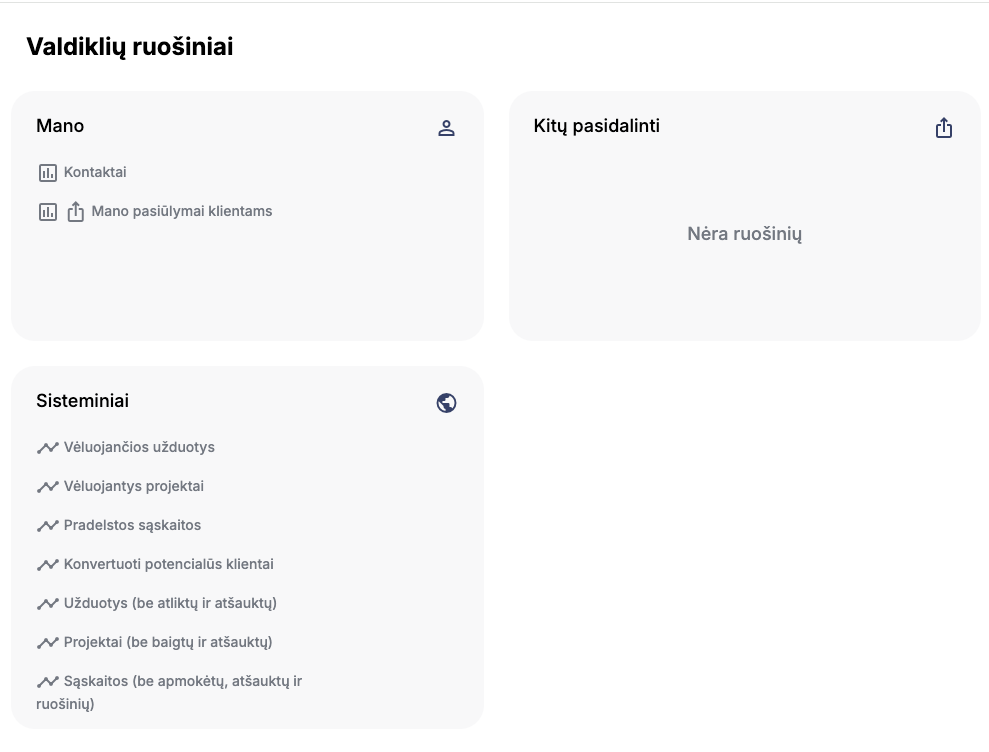
-
Hovering over the name of the control will allow you to:
-
Copy;
-
Edit;
-
Rub.

Why does another employee see other numbers
A shared desktop shares the layout and widget configuration, but does not grant additional rights. The data for each widget is calculated based on the logged-in user's rights, organization, and module visibility rules. Therefore, the same widget may display different values for different employees.
If you seeYou do not have permission to view this widget, the control is in the desktop layout, but its module or data is not available to you. You can contact the person in charge of your system or chooseRemove control.
If the control is empty
An empty table or null chart does not necessarily indicate an error. Check:
-
whether the right desktop is selected;
-
whether the time period and other filters are set in the template;
-
whether you have the right to see the relevant module;
-
whether the data falls within your organization and established rights;
-
whether the page has been updated after the data change.
Related articles
Adding, adjusting and deleting desktop widgets and widgets
Desktop Results Objectives, Types of Controls, Overview and Comparisons