
Adding, editing and deleting dashboard widgets and templates
One user can have several desktops for different work topics: daily work, sales review, projects or other needs.
Adding a desktop widget
-
Select the desktop icon and selectAdd a widget to the desktop:

-
In the modal window that opens, select:
-
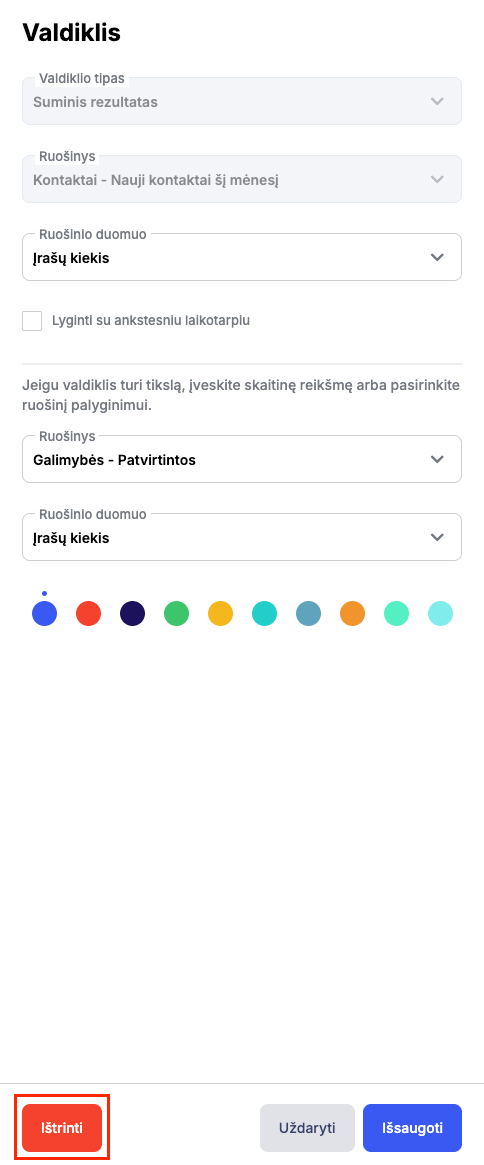
Controller type;
-
Preparation;
-
purpose;
-
Position.

-
After saving the changes, the system will display the widget on your desktop.
Editing and deleting a widget
-
To adjust or remove a widget, hover over the desired widget and select itSettingsbutton:

-
The system will open a modal window where you can make adjustments to the widget or remove it:
Creating a widget
-
To create a widget, select the desktop icon -Add a widget to the desktop:
-
In the box that opens in the modal windowPreparationselect the plus icon:

-
Select the module, controller type and specify the name:

-
Specify filters and save changes:

-
You will see the created template in the controller attachment - after saving the changes, the system will display the controller on your desktop:

Related articles
View desktop widgets and widgets
Desktop Results Objectives, Types of Controls, Overview and Comparisons