
Dashboard goals, widget types, overview and comparisons
Summaries, tables, charts, standard widgets and groups.
Outcome measures and comparisons
-
In the results section of the system, you can specify goals for cumulative results and create comparisons. Choose to edit or create a total score control:

-
Select the template with which you want to compare the result, select the template data information, select the color and save the changes.

-
Next to the result of the control, the target or the result of the selected template will be displayed:

Types of controls
Desktop widgets can be of four types:
-
Cumulative result;
-
Table;
-
schedule;
-
Standard controller.

-
Cumulative result- displays the grand total based on the selected data type.

-
Table- information is displayed in the form of a table:

-
Schedule- the widget displays information according to the schedule specified in the report. The graph can be linear, bar or pie:

-
Standard controller- these are system controls that you can select from a list:

The widget design is mapped to the system widgets:

Overview of desktop widgets
Desktop controls are tools in your system that help you manage and organize tasks, projects, time, goals, and other aspects of your work environment.
User control
In the user control you will see:
-
Task assigned to you;
-
Projects;
-
Reminders;
-
Inquiry;
-
Notifications.

My works
-
Mark relevant or even personal tasks for you in the My tasks section (other employees will not see the task list you have created). To add a post, enter text in the boxNew joband pressenter:

-
To edit an entry, press the mouse button next to the desired entry and the system will allow you to edit it, the arrow icon will delete the unwanted entry:

Objectives
-
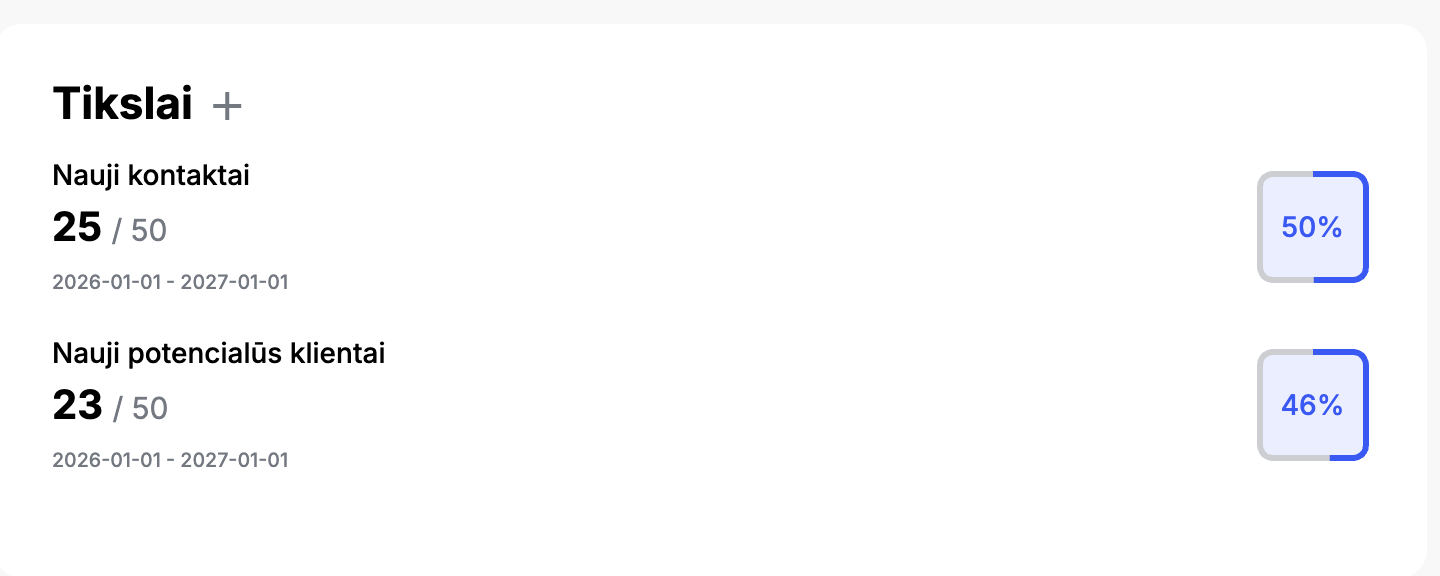
Track your goals on your desktop. Select the plus icon to add a goal:

-
Specify the control type to compare targetsComparison of objectivesand in the boxObjectivestick the desired options:

-
The system will then display the data side by side, so you can compare the exact information:
Calendar
You will see all created tasks in the calendar, you can choose to view it:Day, Week, Month, Agenda:

Sales forecast
The sales forecast consists of Opportunities (commercial offers) in the system. The table shows the value of Opportunities according to the stage of the Opportunity and the probability of sale:

Calls
In this widget you will see all your missed or answered calls:
